However extensively you work with video, there are many advantages to gathering your video files in Mediaflow rather than in a separate video platform. In Mediaflow you can:
use metadata as search terms, important instructions, licence rights, etc. in your workflows.
manage your video files in line with GDPR, using the GDPR module.
share your video files via web shares, in media portals, through CMS integrations and to external systems using embed code.
use Mediaflow's accessible video player when sharing video files.
avoid adverts and suggestions for related video clips.
make your videos accessible with Video Manager.
What does an accessible video player mean?
Mediaflow's video player is WCAG-compliant and does not rely on any other external solutions. The main purpose is to ensure that no one is prevented from using digital services because of a disability. A selection of the requirements in the standard that Mediaflow's video player meets:
Subtitles are available.
The player can be controlled with the keyboard.
Support for screen readers and clear labelling of the different functions.
Clear contrast between text, controls and background.
Responsive design, so the player works on different screen sizes.
Designed with colour blindness in mind.
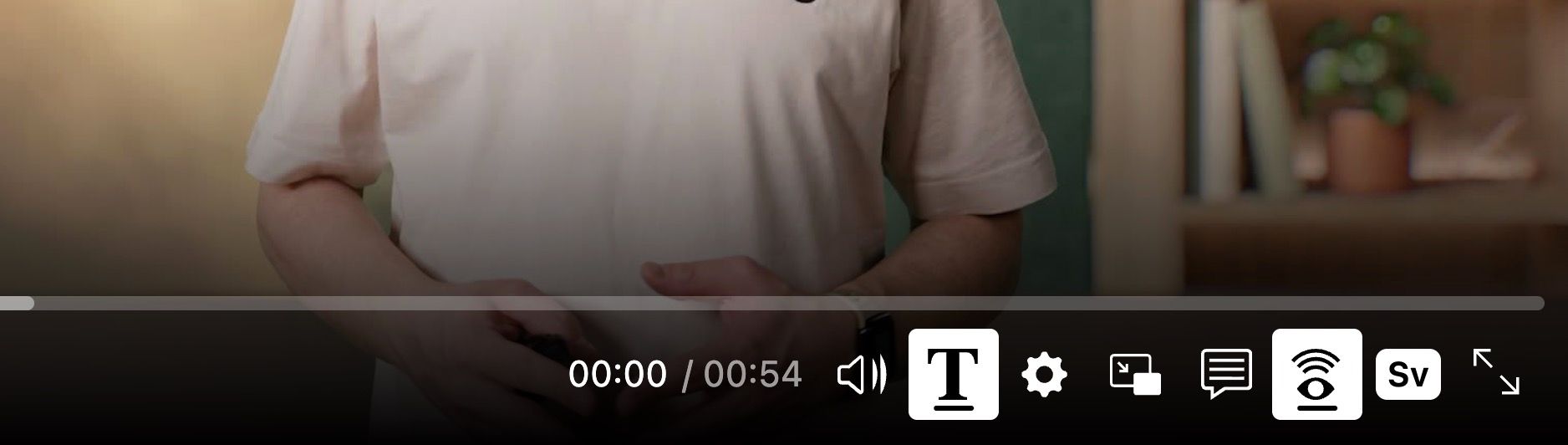
Overview of the video player
Using the icons in the video player, viewers can adjust the quality and playback speed themselves. They can also watch the video in full screen and choose picture-in-picture mode (most often used together with sign language interpretation).
Mediaflow's video player supports subtitles, audio description, sign language interpretation and alternative audio and video tracks, for example for versions in other languages. You make your videos accessible with Mediaflow's video manager, Video Manager, where you can easily connect different audio and video tracks to your video files. If subtitles and different audio and video tracks are connected to the video, viewers can choose to use these aids themselves.
Share your video content
Just as with other files, you can share videos from Mediaflow via web shares. You can also publish them in a media portal, or have a dedicated media portal for video files, a so-called playportal. If you have one of our CMS integrations, such as Sitevision or Wordpress, you can publish video directly on your intranet or website.
Embedding video and video URLs
If you want to publish your videos from Mediaflow in other systems, such as external systems or social media, you can easily use an embed code or a video url.
If you use embed code, we recommend embedding with JavaScript, as it works better than iframe in terms of accessibility. Under the advanced settings, you can customise the code for autoplay, video title, play button, player language, etc.
Files from Youtube and Vimeo
An alternative to storing your video files in Mediaflow is to link them from Youtube or Vimeo. This solution can work well if you just want to be able to see that a video file exists, for example for a specific project, together with your other files in Mediaflow.
Under the Add button, you can choose to add a video from an external source. The video file appears like any other file in Mediaflow. You can watch the video and see information about it, but not download it. This is because the video is still stored on Youtube or Vimeo. Please note that their video player is used, not Mediaflow's.